 Fleasionproxy
How to Install and Run Fleasion
Getting Fleasion v2.4.0 running takes about five minutes: download the standalone build, run it normally, open the Dashboard from the tray, and launch Roblox through the default Env Proxy mode. No Python, installer or routine administrator access is required. This guide covers Windows, macOS and Linux, the errors people actually hit, and a clean uninstall.
Before you start
Fleasion runs on Windows 10 or 11, macOS (Intel and Apple Silicon), and Linux via Sober. You don't need Python for a packaged build. Env Proxy scopes the loopback proxy to Roblox Player or Sober and leaves Studio untouched. Read what changed in v2.4.0 if you are upgrading from the old hosts-file setup.
Step 1: Download Fleasion — from us, not a mirror
Grab the current standalone build from the official Fleasion site — that's our primary distribution point — or from our open-source GitHub Releases for fleasion/Fleasion as the backup. Those two are the only places we publish genuine builds.
We can't stress this enough: don't download Fleasion from mirror sites, "free/premium/cracked" pages, or links you can't trace back to the official site or repo. That's where fake, trojanized copies live, and they're the whole reason the "is Fleasion a virus?" panic exists. If a download doesn't come from the official site or our GitHub, don't run it — here's how the real thing behaves.
For v2.4.0, choose the exact platform asset: Fleasion-v2.4.0-Windows.exe, Fleasion-v2.4.0-MacOS-Universal.zip, or Fleasion-v2.4.0-Linux. Verify it against the SHA-256 table on our v2.4.0 technical page.
Step 2: Install and run on Windows
The build is portable — there's no traditional installer.
- Move
Fleasion-v2.4.0-Windows.exeinto a normal folder such as Documents. A clean folder also avoids loading an unrelated DLL left beside the executable. - Run it normally. Env Proxy uses a high loopback port and does not edit the hosts file. Administrator approval is reserved for a targeted repair or the optional legacy Hosts File mode.
- If Windows SmartScreen shows an "unknown publisher" warning, that's the normal reputation prompt for a small, unsigned app. Pick "More info → Run anyway" — but only if you got the file from us.
What the first launch does
The first launch generates a local proxy certificate and patches it into Roblox's own ssl/cacert.pem trust bundle. It does not add a system-wide root certificate. Fleasion then opens the Dashboard and lives in your system tray. Right-click the tray icon → Dashboard to bring it back, or left-click the icon to hide/show it.
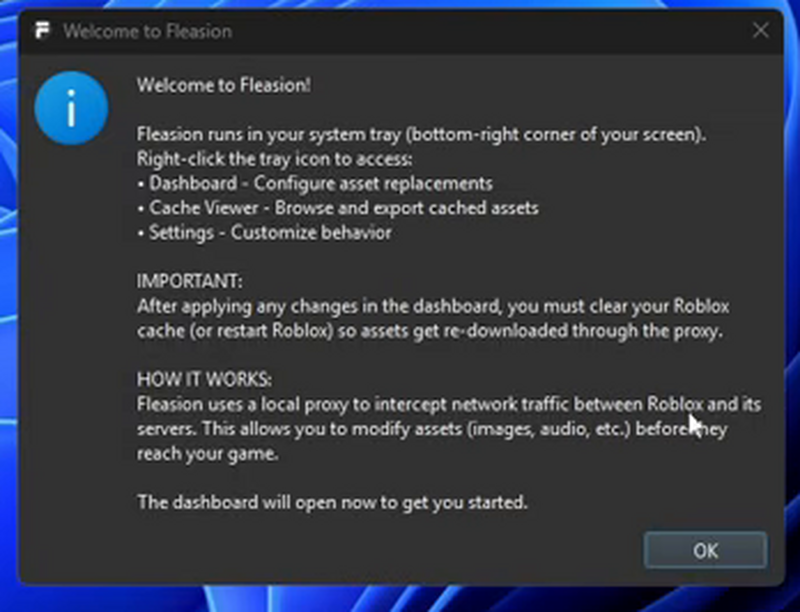
This is the exact welcome you'll see the first time — it points you at the tray, reminds you to clear the cache after changes, and sums up how the proxy works in two lines. Hit OK and the Dashboard opens.
Step 3: Launch Roblox through Fleasion
Use the Roblox Player launch button inside Fleasion. Env Proxy relaunches that Player with the required proxy environment and tunnels the bootstrap traffic; merely opening Roblox independently is not the reliable route. On Linux, Fleasion launches or adopts Sober. Studio is intentionally untouched.
Making your changes apply: clear the cache
This is the step people miss most, so we'll flag it early. After you add or edit a rule, Roblox has to re-download the affected assets through the proxy — so your change only shows up after you clear the Roblox cache or restart Roblox.
We built this to be automatic if you want:
- Clear Cache on Launch (we recommend it) clears the cache every start.
- Auto Delete Cache on Exit cleans up when Roblox closes.
- Or clear it manually from the tray menu anytime.
Rule of thumb: you can't change assets mid-game. Exit Roblox, make your changes, relaunch.
Installing on macOS
The universal archive supports Intel and Apple Silicon:
- Extract
Fleasion-v2.4.0-MacOS-Universal.zipand move Fleasion to Applications. - If Gatekeeper blocks it, Control-click the app in Finder, choose Open, then confirm once.
- Start Fleasion normally. Env Proxy uses a high local port; it does not need the old root helper for hosts-file routing.
- Launch standard Roblox, Froststrap or AppleBlox through Fleasion. v2.4.0 recognizes all three paths.
On first launch we may also ask which browser is signed in to roblox.com, so account-aware features can read your Roblox login; choose "Always Allow" if you'd rather not approve it each time. You can change it later under Settings → Roblox Login.
Installing on Linux (Sober)
On Linux we target the Sober Roblox client:
- Download
Fleasion-v2.4.0-Linuxand make it executable:chmod +x Fleasion-v2.4.0-Linux. - Run it as your user and let Fleasion launch or adopt Sober. Env Proxy does not require
pkexec, a hosts edit or port 443. - On Arch Linux, install the documented Qt runtime with
sudo pacman -S --needed qt6-baseif the GUI cannot start.
Building from source (optional)
Since Fleasion is open-source (GPL-3.0), you can build it yourself — handy if you want to see exactly what you're running:
git clone https://github.com/fleasion/Fleasion.git
cd Fleasion
uv run fleasion

# optional: build the packaged app
uv run build
The current source build targets Python 3.14+ through uv. On Apple Silicon, a universal build also needs Rosetta (softwareupdate --install-rosetta --agree-to-license).
Do you need Python to run Fleasion?
No — not for the standalone build. This one confuses people because Fleasion is written in Python, so some tutorials tell you to install it. Our packaged .exe and macOS app include everything. You only need Python (via uv) if you choose to build from source. Already have Python installed? Makes no difference to the standalone app.
What actually trips people up (our tally)
We went back through the same 32 community setup guides we've catalogued, and the surprise is that the two things creators stress most aren't errors at all:
| In 32 community setup guides, creators emphasise… | Guides |
|---|---|
| Where to download it / avoiding fake builds | 16 |
| "Do you actually need Python?" (you don't) | 8 |
| Clearing the cache so changes apply | 6 |
| Running as administrator (legacy guides) | 3 |
Moving the .exe out of Downloads |
3 |
| The Roblox "critical settings" error | 1 |
Honest caveat: video guides skew toward setup, not troubleshooting — the DLL and "critical settings" errors show up more in our Discord than in tutorials, which is why we still cover them in full below. But the pattern holds: most "install problems" are really "I grabbed the wrong file" or "I thought I needed Python." Get those two right and you've skipped most of the trouble — which is exactly why this guide leads with them.
Fixing common install and launch problems
"DLL load failed" when Fleasion starts
Move Fleasion.exe into a different folder — Documents is a safe pick — and run it from there. Windows sometimes grabs a stray, incompatible DLL sitting in the same folder as the executable (common in a cluttered Downloads folder), and moving the app to a clean folder sidesteps it.
Roblox: "Unable to download or apply critical settings"
If Roblox shows "Unable to download or apply critical settings, check your internet connection" when you launch it through Fleasion, use the Microsoft Store version of Roblox:
- Install Roblox from the Microsoft Store — you'll get the "Roblox Player" app (different from the standard installer).
- Launch that Roblox Player through Fleasion. If the failure remains, use Fleasion's targeted repair and diagnostics instead of elevating every launch.
That clears the error for nearly everyone who hits it. Make sure Fleasion is running in the tray first.
The Fleasion window doesn't appear
It's in the tray. Right-click the icon → Dashboard, or left-click to unhide the window. If nothing shows at all, close it fully and run the current build again normally.
My changes aren't applying
Roblox is serving a cached copy. Clear the cache or restart Roblox after any change, and turn on Clear Cache on Launch. Remember you can't edit assets in a match, and some effects (skyboxes) don't apply on every map.
Linux: the GUI won't launch
Install PortAudio for your distro, then start Fleasion again.
macOS: the proxy won't start
Open Fleasion's diagnostics and check the Roblox CA patch and selected client path. v2.4.0 supports standard Roblox, Froststrap and AppleBlox; reinstall the affected client if its CA bundle cannot be repaired.
An "autoupdate.py" popup or missing-file error
Do not download a loose Python file from a third party. That message belongs to an obsolete build path. Replace the old executable with the complete official v2.4.0 package and relaunch it.
How to uninstall Fleasion completely
It's portable, so removing it is quick:
- Press Win + R, type
%localappdata%, press Enter. - Find the Fleasion folder and delete it.
That clears the app's data. Want it back later? Just download the latest build from our Releases page. (On macOS and Linux, remove the app bundle / the files under ~/.local/share/Fleasion and the installed helper/launcher.)
Frequently asked questions
How do I install Fleasion? Download the v2.4.0 build for your platform from the official site or GitHub release, place it in a normal app folder, and run it as your user. Open the Dashboard from the tray and launch Roblox through Fleasion.
Do I need Python to run Fleasion?
No. The standalone build bundles everything. Python (via uv) is only for building from source.
Do I have to run Fleasion as administrator? No, not in the default Env Proxy mode. It uses a high loopback port and leaves the hosts file alone. Elevation is only for an explicit repair or the legacy Hosts File mode.
How do I fix "DLL load failed"?
Move Fleasion.exe out of Downloads into a clean folder like Documents, then run it there.
How do I fix Roblox's "Unable to download or apply critical settings" error? Try the Microsoft Store Roblox Player and launch it through Fleasion. If the error remains, use the v2.4.0 diagnostics and targeted firewall/permission repair.
How do I uninstall Fleasion?
Open Run (Win + R), type %localappdata%, delete the Fleasion folder. Done.
Updated August 15, 2026 — rebuilt the platform steps for v2.4.0 Env Proxy, current filenames, Gatekeeper, Sober and targeted repair.
Next: How to use Fleasion · Is Fleasion safe? · What is Fleasion? · Download