 Fleasionproxy
How to Use Fleasion — Replace, Remove and Redirect Roblox Assets
We designed Fleasion around one small idea, and once it clicks the whole app makes sense: you build replacement profiles that say "change this asset into that." Pick a mode — replace by ID, swap in a URL or a local file, or remove the asset — name the profile, turn it on, then clear the Roblox cache so the game re-downloads through the proxy. That's the entire loop. Below we walk through every part of it, using a real config with real asset IDs pulled straight from the dashboard, plus how to find IDs, share setups, and fix the usual snags.
The one idea: "Asset ID" vs "Replace with"
Every profile in Fleasion comes down to two fields:
- Asset ID(s) — what you want to change (the thing the game currently loads).
- Replace with — what it becomes (another ID, a URL, a local file — or nothing, to remove it).
That's it. A profile is a saved rule: when the game asks for this asset, hand back that instead. You can stack as many as you like and flip each on or off.
A quick tour of the Dashboard
Right-click the tray icon, choose Dashboard, and you'll see seven tabs:
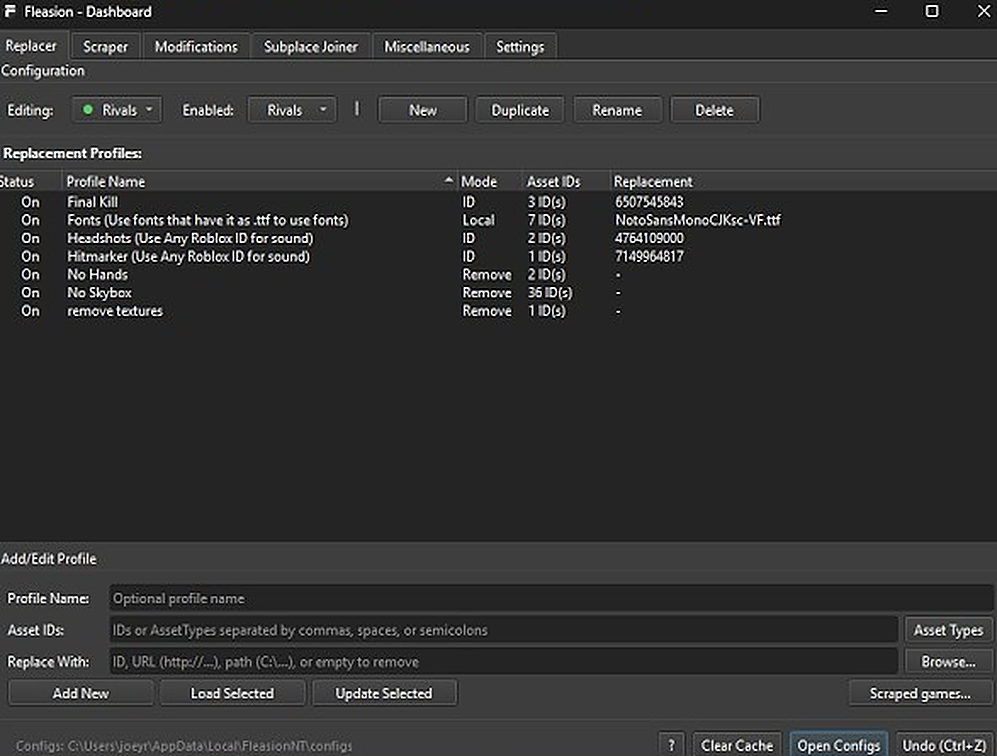
- Replacer — where you build and manage profiles. You'll spend most of your time here.
- Scraper — our live cache scraper that captures the assets a game loads, so you can find IDs.
- Proxy — inspect and debug live requests and responses; filter, hold, edit, replay, forward or drop traffic.
- Modifications — performance/FastFlags (rendering, texture quality, frame-rate cap, gray sky) for max FPS.
- Subplace Joiner — join specific sub-places and run multiple Roblox clients.
- Miscellaneous — account manager, reserved servers, utilities.
- Settings — theme, run on boot, Clear Cache on Launch, Auto Delete Cache on Exit.
The Proxy tab can expose login headers, cookies and bodies. Never stream it or share a capture without redacting secrets. If you hold a request, the Player may wait until you forward or drop it.
At the top of Replacer you pick which game you're Editing and which is Enabled, and you can create, duplicate, rename or delete whole profile sets. The list shows each profile's Status, Name, Mode, Asset IDs and Replacement. Along the bottom sit Clear Cache, Open Configs and Undo.
Replacing an asset by ID
The most common job — swap one existing asset for another.
- In Replacer, open Add/Edit Profile at the bottom.
- Paste the ID (or IDs — commas, spaces, or semicolons) of the asset you want to change into Asset IDs.
- In Replace With, paste the ID of the asset you want instead.
- Give it a name you'll recognize later — "Red dot → Delta."
- Hit Add New. It lands in the list with Status: On and applies next time you launch Roblox.
If you're using one of our preset games, you don't have to hunt IDs by hand: browse the game's built-in lists — its originals for the thing you're changing, and replacements (including a universal section) for what to change it into — pick both, and Fleasion fills in the IDs.
The four modes
The Mode column tells you what a profile does:
| Mode | "Replace with" field | What it does |
|---|---|---|
| ID | A Roblox asset ID | Swaps one asset for another existing asset |
| URL | http://… link |
Serves content from a CDN/URL (Discord, Cloudflare, etc.) |
| Local | A file path (C:\…) or Browse |
Serves a file from your PC (a .ttf font, an .ogg sound) |
| Remove | (empty) | Strips the asset from the request entirely |
And here's a real, working set of profiles (from a Rivals setup) so you can see the modes in context:
| Profile | Mode | Asset IDs | Replacement |
|---|---|---|---|
| Final Kill | ID | 3 IDs | 6507545843 |
| Fonts | Local | 7 IDs | NotoSansMonoCJKsc-VF.ttf |
| Headshots | ID | 2 IDs | 4764109000 |
| Hitmarker | ID | 1 ID | 7149964817 |
| No Hands | Remove | 2 IDs | — |
| No Skybox | Remove | 36 IDs | — |
| remove textures | Remove | 1 ID | — |
Removing an asset (no arms, no textures, no skybox)
Removing is just a profile with an empty "Replace with."
- Put the ID(s) you want gone in Asset IDs. You can enter a lot at once — removing arms in Phantom Forces means all 27 IDs that make up the arms; "No Skybox" above bundles 36.
- Leave Replace With blank (it says empty to remove). If the field insists on a value, an empty target still means "remove."
- Name it ("No arms," "No textures"), hit Add New.
The Mode shows Remove. That's how the popular "no arms," "no textures," and "no skybox" setups work.
Redirecting an asset to your own file or URL
Want your own sound or texture instead of another Roblox asset? Use Local or URL mode:
- Local file: click Browse, use an absolute path for a private setup, or use a portable path such as
/Sounds/hit.oggfor a shareable config. Portable paths resolve inside the config's asset folder and support nested folders up to 10 levels. - URL: paste a direct link (
http://…) — good for assets on a CDN like Discord or Cloudflare. We can even download and convert.objmeshes from those links.
Working with profiles
Profiles are meant to be mixed and matched:
- Name every profile clearly — future-you will thank you when a config has a dozen rules.
- Turn them on/off with Enable Selected / Disable Selected. On applies; Off is ignored.
- Keep multiple configs and switch between them. Just watch that statuses don't conflict — two profiles targeting the same asset fight each other, and some effects won't apply if they clash.
- Use Load Selected / Update Selected to edit an existing profile instead of adding a new one.
Finding the asset IDs you want
You don't have to know an ID in advance — that's what we built the Scraper for. It captures every asset a game loads while you play:
- Open Scraper and enable it. It runs automatically in the background.
- Play normally — Fleasion records each asset's ID, type and source, converting formats as it goes (KTX to PNG, static meshes to
.obj, and embedded rigs to single-file.glb). - Preview what it captured with the built-in mesh, animation, audio and JSON viewers, then copy the ID straight into a profile.
This is the reliable way to grab the exact ID of "that gun's fire sound" or "that scope's reticle" without guessing. The Scraped games button in Replacer links captured assets back into your profiles.
Making changes apply: clear the cache
People forget this one, so we say it loud: Roblox caches assets, so after you add or change a profile you have to clear the Roblox cache or restart Roblox — otherwise it keeps serving the old copy.
We built it to be hands-off if you want:
- Clear Cache on Launch (recommended) — happens automatically every start.
- Auto Delete Cache on Exit — cleans up when Roblox closes.
- Or hit Clear Cache in Replacer / the tray menu.
And remember: you can't edit assets mid-game. Exit → change your profiles → relaunch.
v2.4.0 invalidates Roblox storage more thoroughly and cancels cache work cleanly on shutdown. If a change still will not take, clear the cache manually from the tray and relaunch the Player through Fleasion.
Sharing and importing setups: configs and PreJsons
You rarely need to build everything from scratch.
- Import a config (JSON): click Open Configs, then add the JSON to your Fleasion configs folder. If the config uses portable
/Folder/file.extpaths, keep its asset folders beside it. Fleasion watches imported and externally changed configs while it runs. - Export your setup: the same Open Configs area lets you copy your JSON to share it back.
- PreJsons (community presets): we built a grid right into Fleasion that fetches community presets by game — each card shows the game's name, thumbnail, and when it was created/updated. Browse, pick one, and you've got a ready-made setup without touching a single ID. Your own exports can be added to PreJsons too.
Most sharing happens in the community, so a shared JSON or a PreJson is usually the fastest way to a great-looking game.
Where most people start
Got the mechanic but not sure what to build first? Here's what the community reaches for most — from the 32 community guides we've catalogued, the three most-built setups are a no-textures / FPS look, custom hit and kill sounds, and a custom skybox. Every one is just the same profile you learned above, pointed at different IDs. Pick one, follow its guide, and the whole loop clicks in five minutes: no arms / no textures, custom hit sounds, custom skyboxes.
Frequently asked questions
How do I replace an asset in Fleasion? In the Replacer tab, put the asset's ID in "Asset IDs," put the replacement ID (or URL/local file) in "Replace With," name the profile, and click Add New. Clear the Roblox cache, then launch Roblox.
How do I remove arms, textures, or the skybox? Make a profile with the IDs you want gone and leave "Replace With" empty — that sets the mode to Remove. Removing arms means selecting all the arm IDs at once (27 in Phantom Forces).
How do I use my own sound or texture instead of another Roblox asset? Use Local mode (a file path via Browse) or URL mode (a direct http link) in the "Replace With" field.
Why aren't my changes applying? Roblox is serving a cached copy. Clear the cache or restart Roblox after any change, and enable "Clear Cache on Launch." You also can't change assets in a match — exit, edit, relaunch.
How do I add a preset someone shared? Click Open Configs and paste their JSON, or use the built-in PreJsons grid to pick a community preset by game.
Can I edit assets while I'm in the game? No. Exit Roblox, make your changes in the Dashboard, then relaunch so the assets re-download through the proxy.
What is the Proxy tab for? It is a live debugging view for filtering, holding, editing, replaying, forwarding and dropping proxied traffic. Never stream it: the view can expose Roblox login data.
Updated August 15, 2026 — added the v2.4.0 Proxy tab, portable paths, live config watching and rigged GLB export.
Next: Fleasion for Phantom Forces · How to install Fleasion · What is Fleasion? · Presets & configs