 Fleasionproxy
How to Get Custom Skyboxes in Fleasion
A custom sky is the change people notice first, and it's one of the reasons we get so many new users. Swap the default skybox for an aurora, a moon-lit night, or a clean gradient and the whole game looks different — and we made it a two-minute job. This guide covers applying a custom skybox in any supported game, changing every map at once, using your own image or a ready-made one, and the single most common frustration we hear about: skyboxes that won't show on certain maps. For game-specific sky recipes, see Phantom Forces, Rivals or Da Hood.
It's a genuine community favorite, too: in the 32 community Fleasion guides we've catalogued, custom skyboxes turn up in 13 — right alongside hit/kill sounds as one of the most-covered swaps people make.
Here's the kind of result:
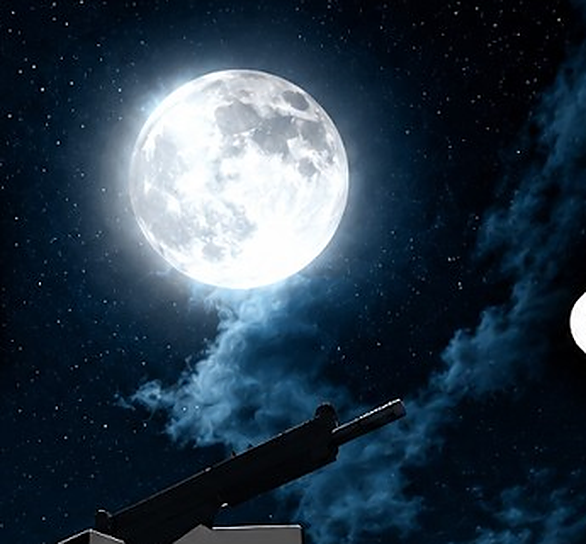
What a custom skybox does
A skybox is the image wrapped around the world that you see as the "sky." We don't build a new sky engine — we replace the skybox asset the game loads with a different one, on your client only. Other players still see the default sky; you see yours. Since it's an asset swap, it follows the same replace-by-ID flow as everything else in the Replacer tab.
Applying a custom skybox
- Open Dashboard → Replacer and select your game.
- Target the game's skybox asset ID(s) in Asset IDs. Get them from the game's preset (its originals → textures → skyboxes list) or capture them with the scraper.
- In Replace With, choose the sky you want — a Roblox skybox ID, a URL, or your own image (Local). Many presets include a universal skybox option.
- Name it ("Aurora skybox"), Add New, clear the cache, and load into a fresh server.
Change the sky on every map at once
Games often use several skybox IDs across different maps. To change the sky everywhere it's supported, select all of the skybox IDs in Asset IDs and point them at one replacement. That's how the "one sky for every map" setups work — though some maps override the sky entirely (see below).
Where to get ready-made skies
You don't have to make a sky yourself:
- Community sky channels. Our community keeps dedicated skybox channels full of ready-to-use skies — download one you like and drop it into your skybox profile. Fastest route to a great sky.
- PreJsons & shared configs. Many presets already include a skybox; import a PreJson or JSON config and it's set up for you.
- Your own image. Any suitable sky image on your PC works as a Local replacement.
Using your own sky image
- Prepare the sky image on your PC.
- In the profile's Replace With, click Browse and select it (mode becomes Local), or host it and paste a URL.
- Add the profile, clear the cache, load a fresh server.
Since it's served locally through the proxy, there's no Roblox upload.
No skybox (remove the sky)
Some competitive players prefer no sky at all for a clean, distraction-free backdrop. That's just a Remove profile: select the skybox IDs, leave Replace With empty (mode becomes Remove), name it "No Skybox," add it. In Rivals, for example, a real "No Skybox" profile bundles 36 skybox IDs with an empty replacement.
Why your custom skybox isn't working
This is the number-one skybox question we get, and it's almost always one of three things:
- You're on a map that overrides the sky. Custom skyboxes don't apply on night maps or certain newer maps — the map forces its own sky. That's expected behavior, not a bug. A sky that works on most maps just won't show on those.
- The cache is stale. If a sky that normally works suddenly doesn't, clear the Roblox cache and reboot your PC, then rejoin a fresh server.
- The IDs changed after an update. If nothing applies anymore, the game likely updated its skybox IDs — re-capture them with the scraper and update your profile.
So before you decide your setup is broken: check the map, clear the cache, reboot, rejoin.
Troubleshooting skyboxes
- Sky won't show on one specific map → that map (often night/newer) overrides the sky. Nothing to fix — it's by design.
- Sky stopped showing on maps where it worked → clear the cache, reboot your PC, rejoin a fresh server.
- No sky changes at all → wrong/old skybox IDs (re-scrape), or the profile is disabled (check Status is On).
- Everything broke after a game update → IDs shifted; re-capture and update the profile.
Frequently asked questions
How do I get a custom skybox in Fleasion? In the Replacer tab, target the game's skybox IDs in "Asset IDs" and choose your sky (a Roblox skybox ID, a URL, or your own image) in "Replace With." To change every supported map, select all the skybox IDs. Clear the cache and join a fresh server.
Why isn't my custom skybox working? Most often you're on a night or newer map that overrides the sky — custom skyboxes don't apply there. Otherwise, clear the cache, reboot your PC, and rejoin; if it still fails, the game updated its skybox IDs, so re-capture them with the scraper.
Where do I get custom skies? From our community's dedicated skybox channels and from PreJsons/shared configs. You can also use any suitable image on your PC as a local replacement.
How do I remove the sky (no skybox)? Create a Remove profile targeting the skybox IDs with an empty "Replace With." In Rivals, a real "No Skybox" profile bundles 36 skybox IDs.
Can I use one sky for every map? Yes — select all the skybox IDs in one profile and point them at a single replacement. Maps that override the sky (night/newer) are the exception.
Updated July 2026 — added a note on how popular custom skyboxes are across the community.
Related: How to use Fleasion · Phantom Forces skyboxes · Da Hood sky · Presets & configs